How to link a barcode to a product
The product gets its own barcode: the scanner finds it and adds it to the receipt.
2.0.0Added in version 2.0.0. Don't see it in the app? Update it in the App Store or Google Play. What's new in Tijorat
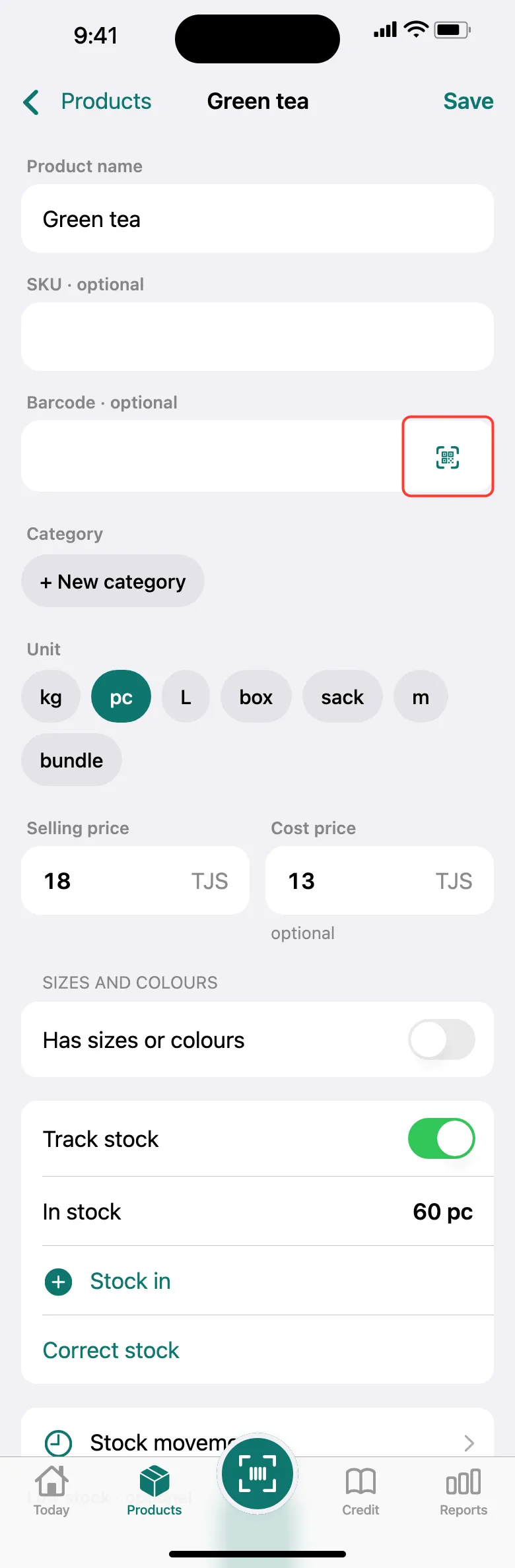
Open the Products tab and tap the product. In the Barcode field, tap the camera icon on the right and point the camera at the code on the package. You can also type the code.
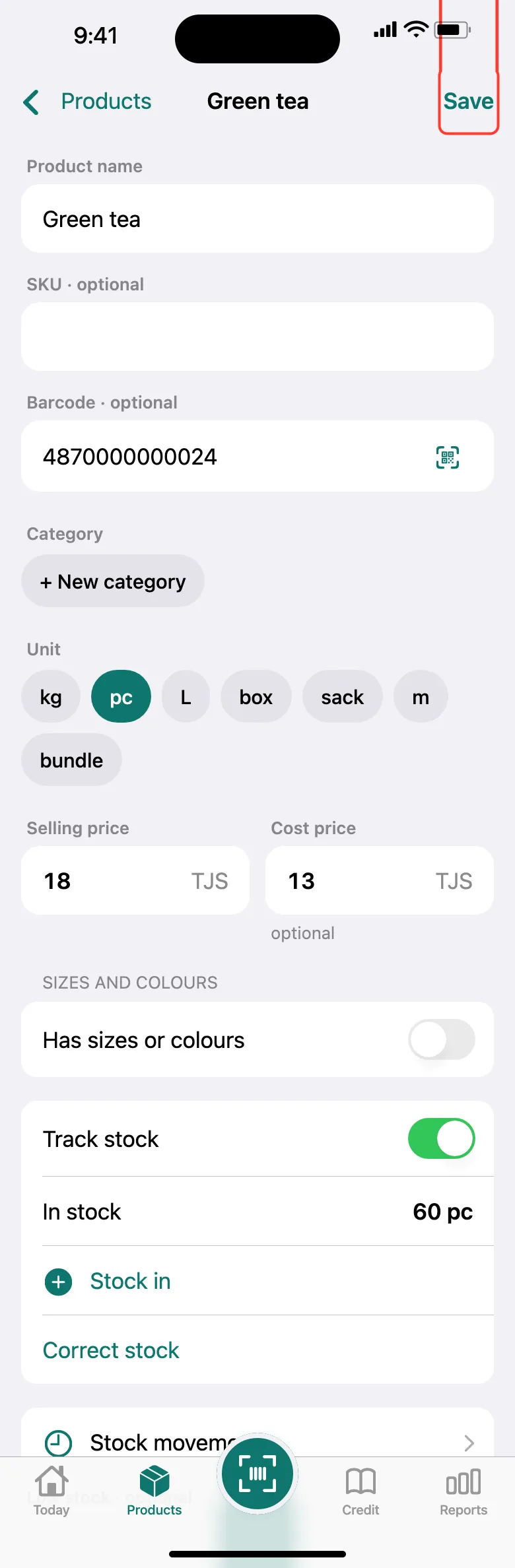
The code appears in the field. Tap Save.
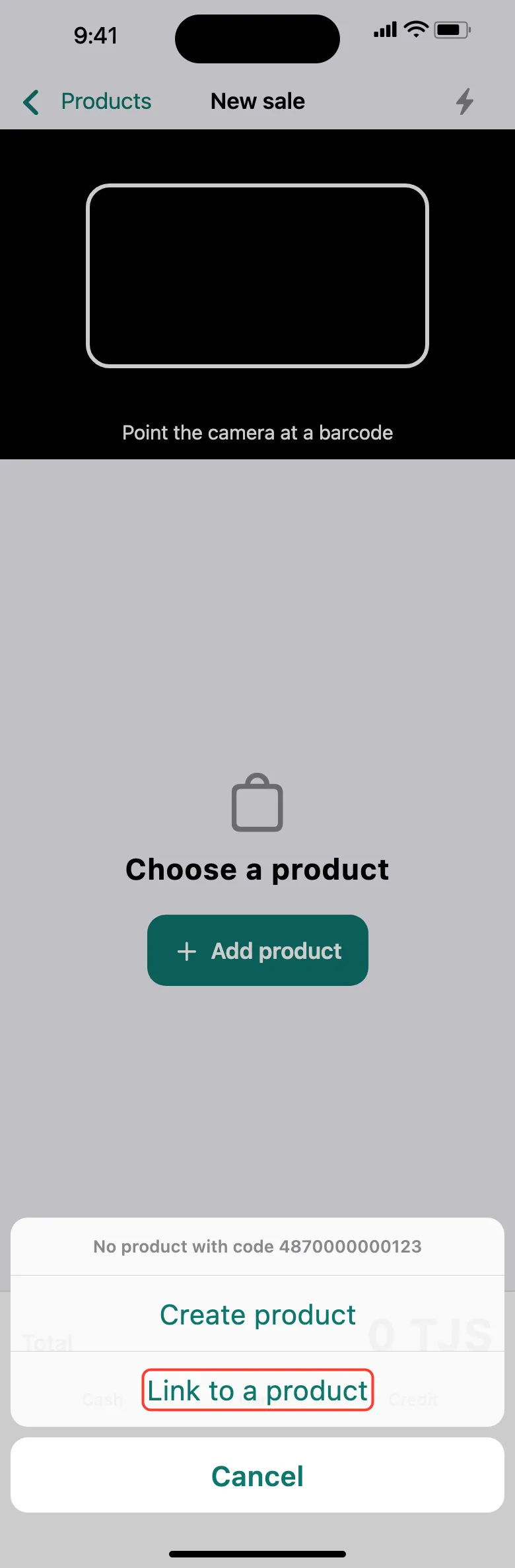
Even faster — right during a sale. When the scanner reads a code nobody has yet, choose Create product (a new product card opens with the code filled in) or Link to a product (pick a product from the list and the code goes to it).
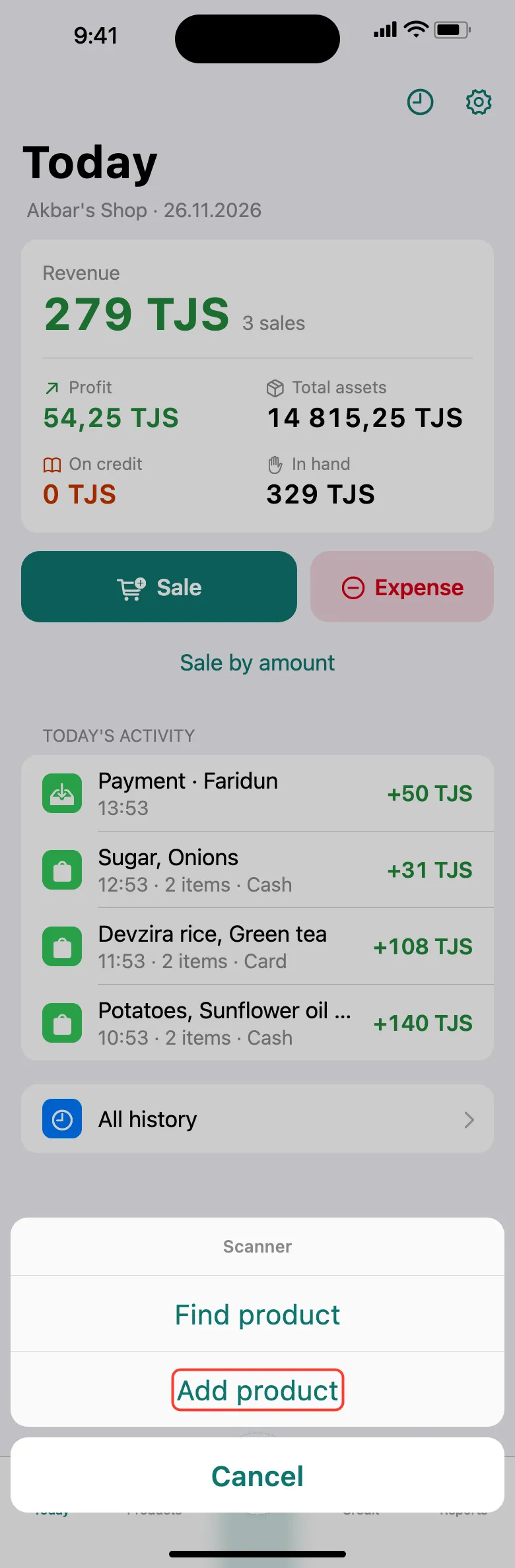
Press and hold the scanner button at the bottom centre — a menu appears: Find product opens the product card by its code, Add product opens a new card with the scanned code.
Lots of products? Import the codes from a spreadsheet: add a “Barcode” column and load it through Settings → Import from spreadsheet. If Excel shows the code as 4.87E+12, format the column as text. Sizes and colours have codes of their own — see “How to link barcodes to sizes”.
What next
Didn’t work? Message us on Telegram