How to link barcodes to sizes
Each size and colour of the model gets its own code: the scanner adds exactly that size to the receipt.
2.0.0Added in version 2.0.0. Don't see it in the app? Update it in the App Store or Google Play. What's new in Tijorat
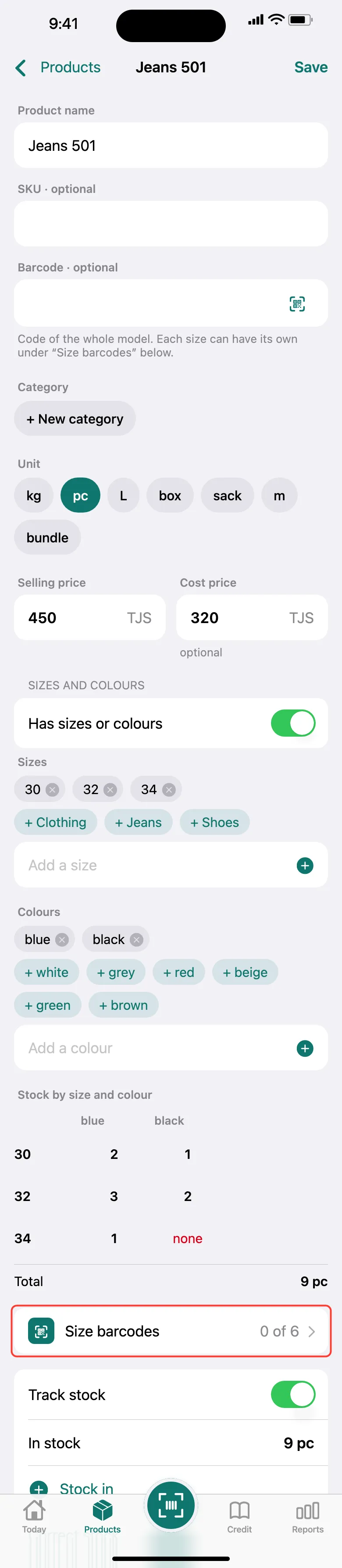
Open the Products tab and tap a model with sizes. Scroll down the card and, under the stock table, tap Size barcodes. On the right you see how many sizes already have a code.
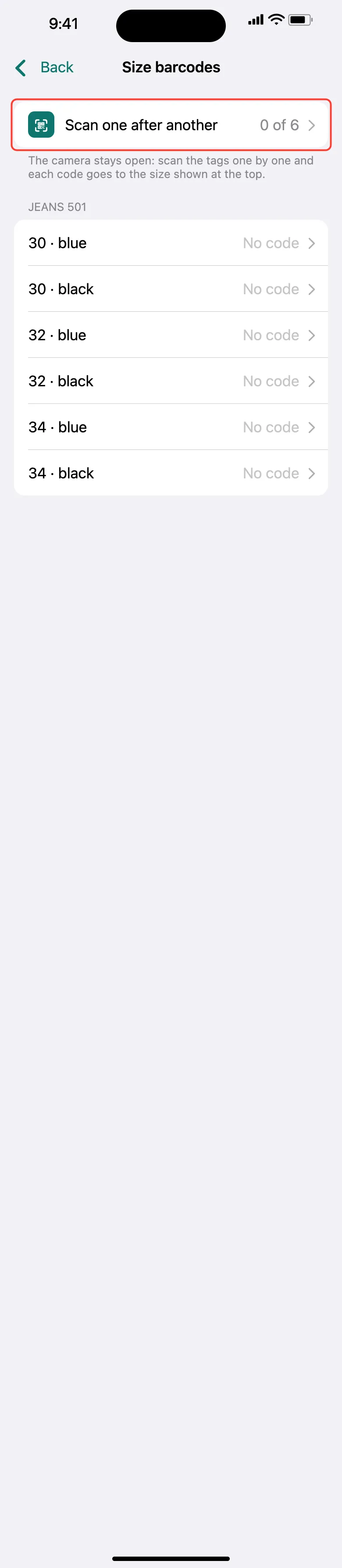
Here are all sizes and colours of the model with their codes. Tap a size to scan its code. Faster for the whole model — Scan one after another.
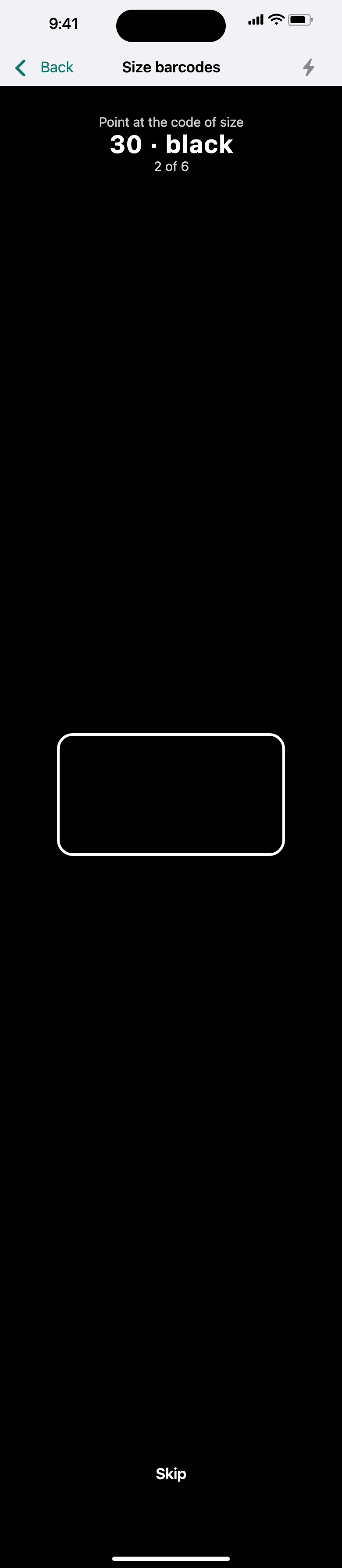
The size that needs a code is written in large letters at the top. Point the camera at the tag of that size — after the beep the next size appears at the top. Tag not at hand? Tap Skip. When every size has its code, the screen closes by itself.
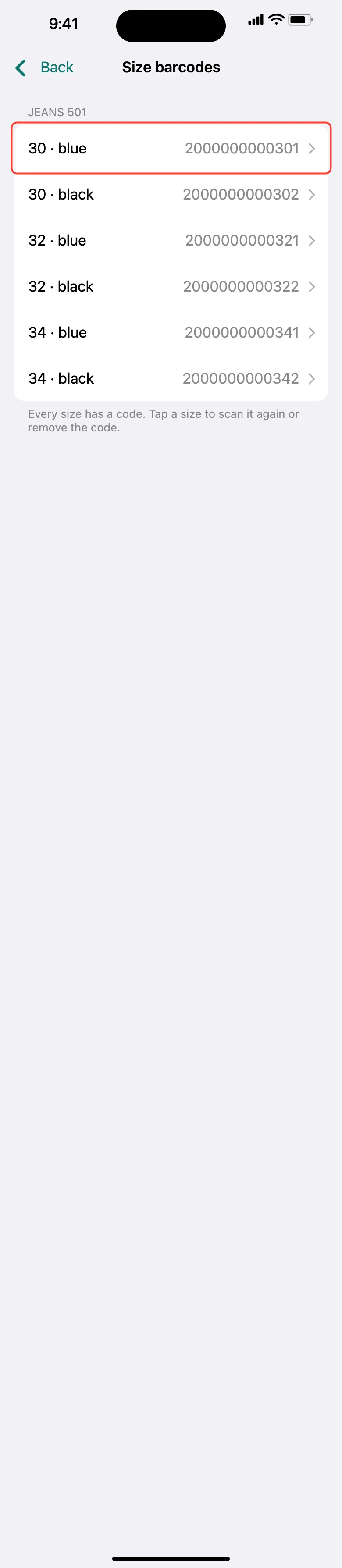
The list now shows the codes. Tap a size with a code to scan it again or remove the code. In the stock table, sizes with a code get a small icon.
The code in the Barcode field at the top of the card belongs to the whole model: with it the app asks for the size at a sale. A size code adds that size to the receipt straight away.
What next
Didn’t work? Message us on Telegram