How a staff member connects to the owner
The staff member’s phone connects to the owner: sales go to the owner, products come from them.
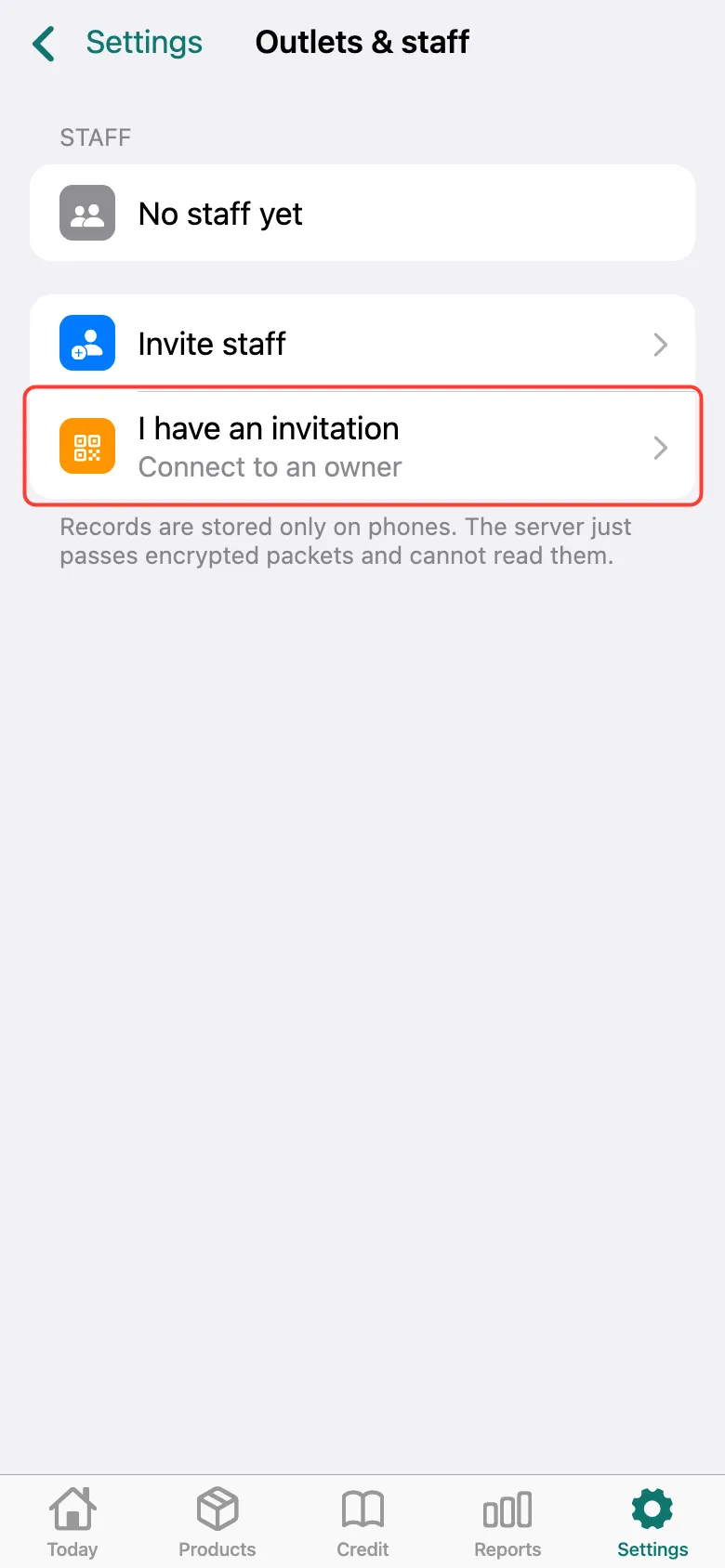
The staff member installs Tijorat, signs in to their own account and opens Settings → Outlets & staff → I have an invitation. If the owner sent a link, just open it — the form opens with the code filled in.
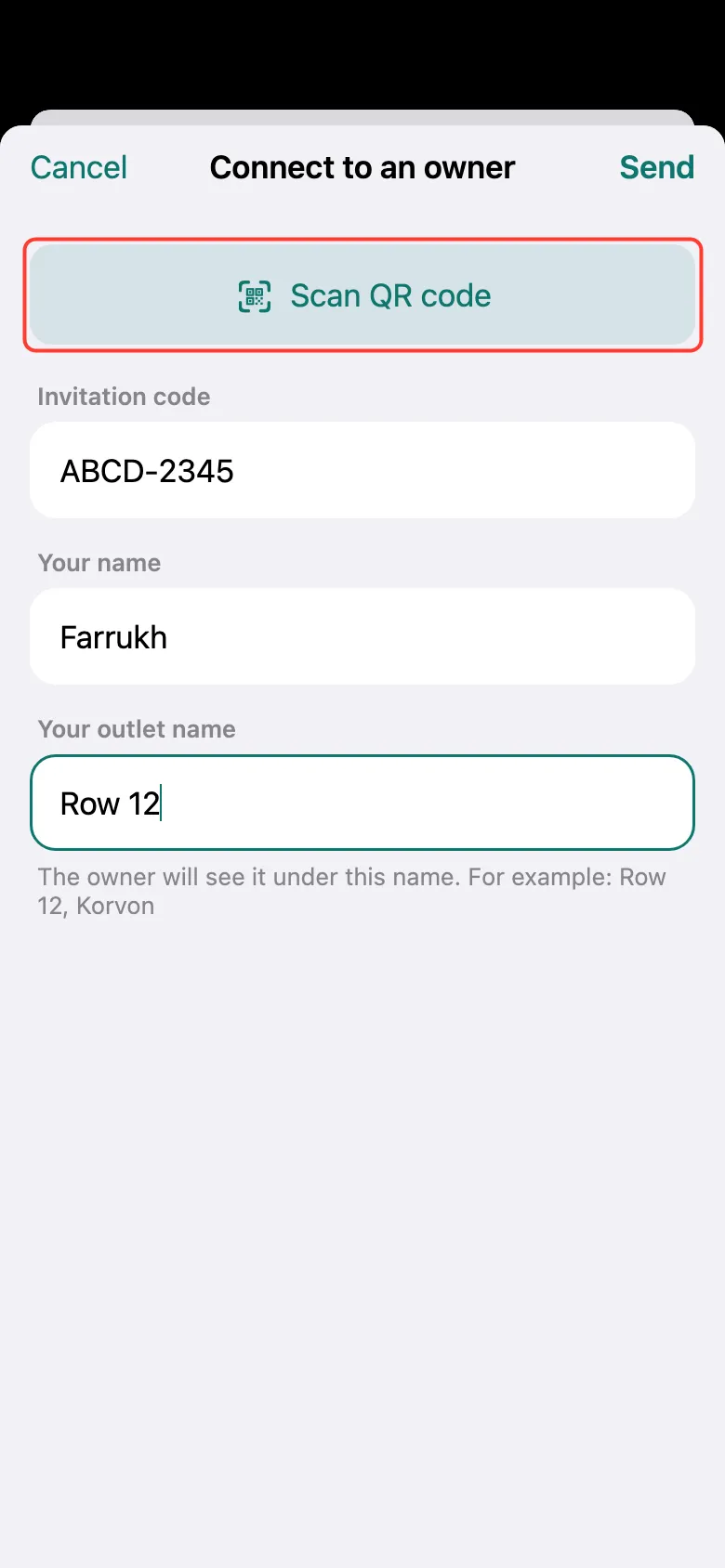
Tap Scan QR code and point the camera at the QR code on the owner’s phone — or type the Invitation code by hand.
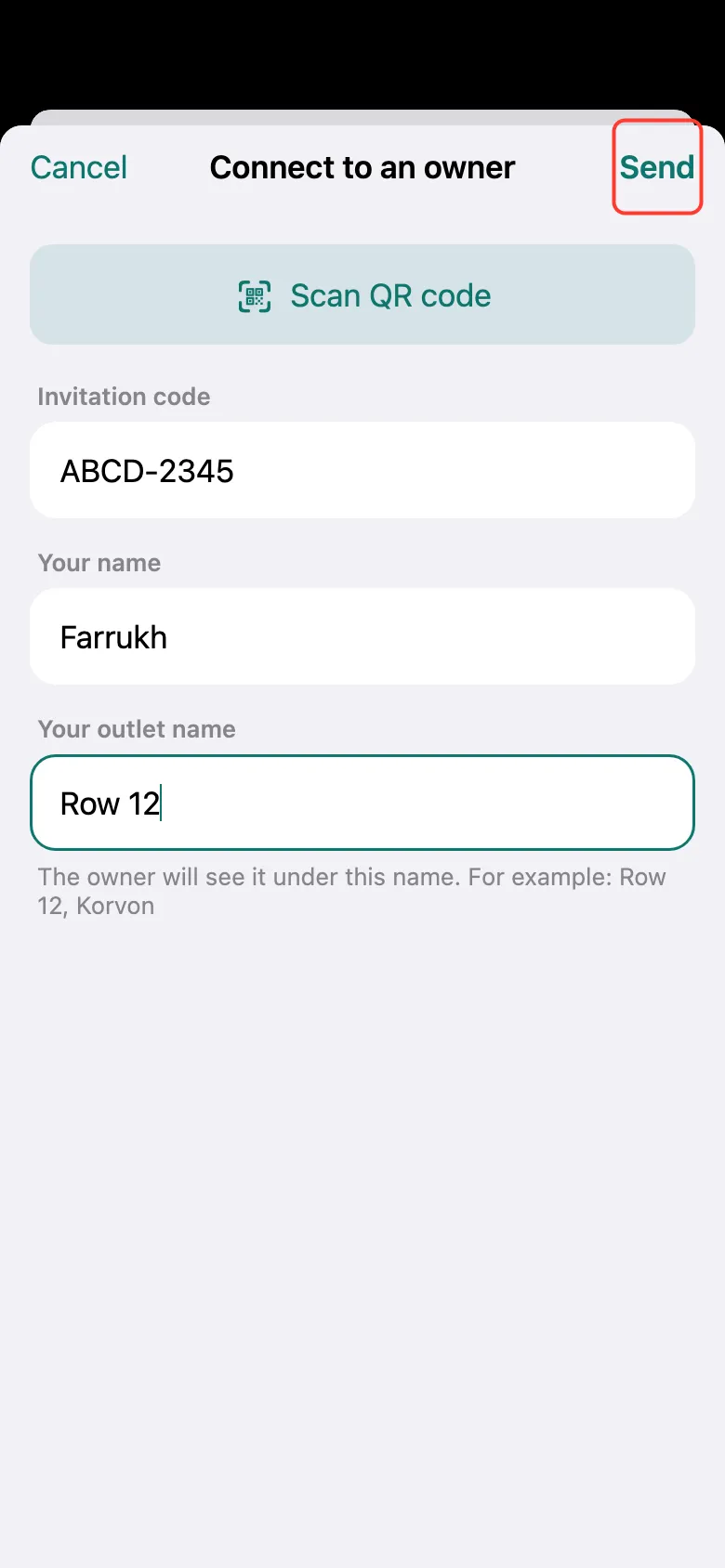
Enter Your name and Your outlet name — for example, “Row 12”. That’s how the owner sees you in the list. Tap Send and wait for the owner to accept.
What next
Didn’t work? Message us on Telegram